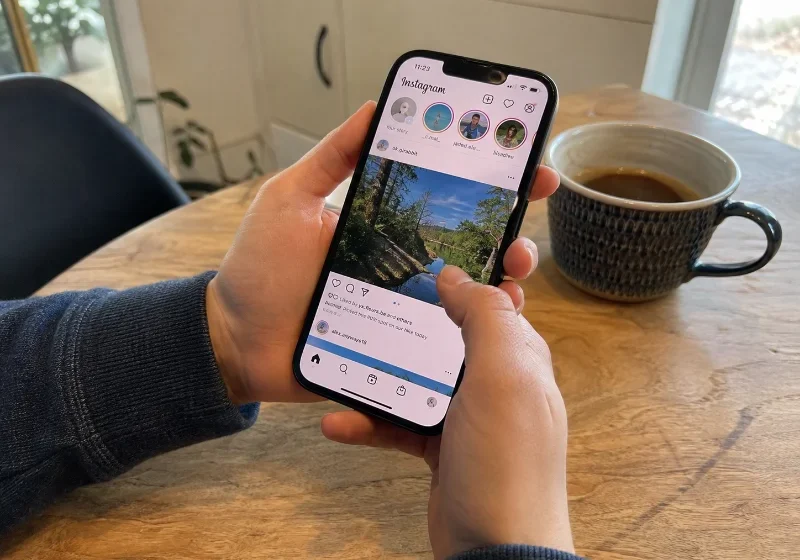
There is no single switch that removes Meta AI from Instagram. Meta built the assistant into the app’s search bar, chat inbox, and content tools, and as of 2026, it has not shipped a global off button. What you can do is mute the chat, stop the assistant from remembering what it knows about you, and block other people from using your public photos to generate AI images.The same clutter shows up in Gmail’s AI panel too — here’s how to turn that off as well.
This guide walks through every working method, in the order most people actually need them.
Why You Cannot Fully Disable Meta AI
Meta has publicly said that AI is now a core part of Instagram’s architecture, not an optional add-on you can toggle in settings. The assistant sits behind the blue-gradient circle in the search bar, generates comment summaries on some posts, and powers tools like Reels translation and the Muse image generator.
Because it’s woven into so many features rather than living in one settings menu, “turning it off” really means going feature by feature. The sections below cover the controls that currently exist.
Mute the Meta AI Chat
If Meta AI keeps showing up in your messages, muting it is the fastest fix.
Open Instagram and tap the search bar or the Messenger icon, then find the blue, teal, and purple circle for Meta AI. Tap the “i” icon in the top right corner of the chat. Choose Mute, then select “Until I change it” so it stays quiet.
You can also tap Hide Message Previews inside that same menu so notifications from the AI chat do not pop up on your lock screen. Muting does not delete the assistant from Instagram. It only stops it from interrupting you.
Reset What Meta AI Knows About You
Meta AI keeps context from your past conversations with it, the same way a chatbot remembers earlier messages in a session. If you have ever asked it something and want that history cleared, open the Meta AI chat and type /reset-ai, then send it.
This clears the assistant’s memory of your prior chats with it. It does not affect your regular Instagram posts, DMs with other people, or your account data outside the AI chat itself.
Stop Others From Using Your Photos in AI Images
This is the setting most people are actually searching for, and it’s the one that matters most if your account is public. In 2026, Meta rolled out an image generator called Muse Image that lets anyone tag a public Instagram account and have the AI build a new image using that account’s public photos.
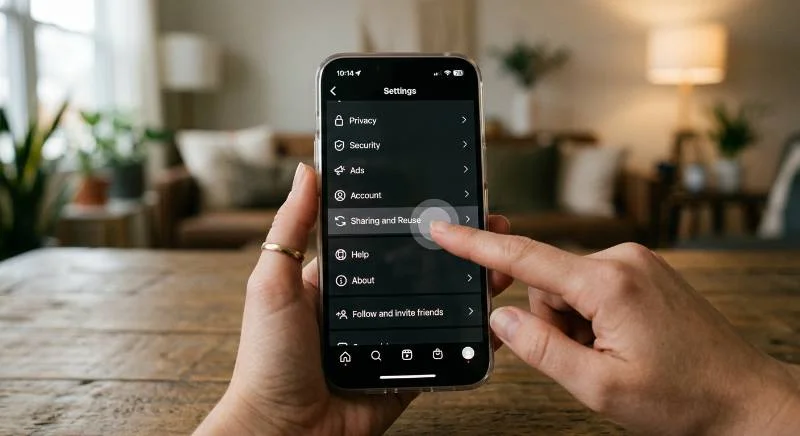
1. Here’s how to turn that off
Open Instagram and go to your profile. Tap the three-line menu in the top right corner, then choose Settings. Look for Sharing and Reuse, and scroll to the line that reads something like “Allow people to reuse your content on Instagram and with AI features at Meta.” Turn off the toggles for both Posts and Reels.
Private accounts were excluded from this feature from the start, so if your profile is already private, you don’t need to do this step. The wording of this setting has shifted slightly as Meta has updated the feature, so if you don’t see it exactly as described, look under Settings, then Privacy, for anything mentioning AI or content reuse.
Turn Off AI Translation on Reels
Instagram uses Meta AI to auto-dub some Reels into other languages, including your own voice translated into a different one. If you’d rather your Reels stay in their original audio, this has its own separate switch.
Go to Settings, then Language and Translations, and look for the Translate Voice option. Turning this off stops your Reels from being auto-dubbed by the AI, though it doesn’t affect Meta AI anywhere else in the app.
Object to AI Training on Your Public Content
Meta uses public posts, photos, and comments from adult users to train its AI models. Depending on where you live, you may have a legal right to object to this. Users in the EU and UK generally have the strongest protections here under GDPR.
To file an objection, go to your profile and open Settings, then Privacy Centre or Accounts Centre depending on your app version. Look for a section about how Meta uses information for generative AI, and follow the prompt to submit an objection form with your email and reason.

US-based users currently have fewer formal opt-out rights than EU users, since there’s no federal law equivalent to GDPR. Some state privacy laws, like those in California and Colorado, may still give residents a path to request this, so it’s worth checking the form even if you’re in the US.
Limit AI-Driven Recommendations
Meta AI also shapes what shows up in your Explore page and suggested Reels. You can’t remove this system outright, but you can influence it.
Use the Not Interested option on posts or Reels you don’t want more of. Hide accounts or topics you’d rather not see recommended. Over time, this retrains the recommendation model on your account toward content you actually engage with, even though the underlying AI system stays active.
What Stays On No Matter What
A few things are worth knowing before you spend time hunting for settings that don’t exist. Meta AI remains embedded in Instagram’s search bar and chat inbox regardless of the settings above. Comment summaries may still appear on some posts with heavy comment activity. Content moderation and spam filtering, which also rely on AI, cannot be turned off by users at all, since they apply platform-wide for safety reasons.

A Faster Path if You Want AI Gone Entirely
If muting and adjusting settings still feels like too much AI for your taste, using Instagram through a mobile browser instead of the app removes some AI features, like the chatbot, since the web version is a lighter build. You lose some app-only features doing this, so it’s a trade-off rather than a fix.
How to Delete a Custom AI Chatbot You Created on Instagram
Instagram also lets users build their own custom AI characters, and those work differently from Meta AI itself. If you made one and want it gone, you have full control, since Meta treats these as your own creation rather than a platform default.
Go to your profile, tap the three-line menu, and open Settings. Look for AI Studio or the section listing AIs you’ve created, select the chatbot, and choose Delete. This removes the AI you built along with any chat history tied to it, and it’s the one part of Instagram’s AI system with a real, permanent off switch.
Common Mistakes People Make When Trying to Disable Meta AI
A lot of users spend time hunting for a setting that doesn’t exist yet, mainly because older guides and forum threads describe controls Meta has since removed or renamed. Searching your settings menu for “disable AI” often turns up nothing, since Meta doesn’t label it that way.
Another common mistake is assuming a private account blocks everything. Going private stops others from using your photos in AI-generated images, but it doesn’t stop Meta AI from appearing in your own search bar or chat inbox, since those are account-level features rather than content-sharing ones.