If Gmail keeps summarizing your threads, suggesting replies you never asked for, or showing a Gemini panel you didn’t turn on, you are not imagining it. Google switched on a wide set of AI features across Gmail by default, and unless you live in the European Economic Area, the UK, Switzerland, or Japan, those features arrived already active on your account. Turning them off takes about three minutes once you know where to look, but the settings are split across two different menus, and most guides only cover one of them.
This guide walks through every place Gmail hides its AI controls, on desktop, iPhone, Android, and inside a Workspace account managed by an employer or school.
Why Your Gmail AI Features Are Already On
Gmail’s AI rollout did not happen in one step. Over the past year, Google added AI-generated summaries above email threads, an AI-built daily inbox briefing, expanded Smart Compose and Smart Reply suggestions, and a Gemini side panel that can answer questions about your messages. Each of these shipped as an opt-out feature rather than opt-in for most accounts, which means the switch defaults to on the moment Google enables it for your region.
This matters because a single setting you disabled last year does not guarantee those features stay off. When Google pushes a new AI feature, it can arrive active again, even on accounts where older AI settings were already turned off. Checking your settings after any major Gmail update is a habit worth keeping, not a one-time fix.
Turn Off Smart Features in Gmail on Desktop
The main toggle controlling Smart Compose, Smart Reply, automatic email categorization, nudges, and in-thread AI summaries lives in Gmail’s general settings. This is the first and most important switch to flip.
1. Step-by-Step Instructions
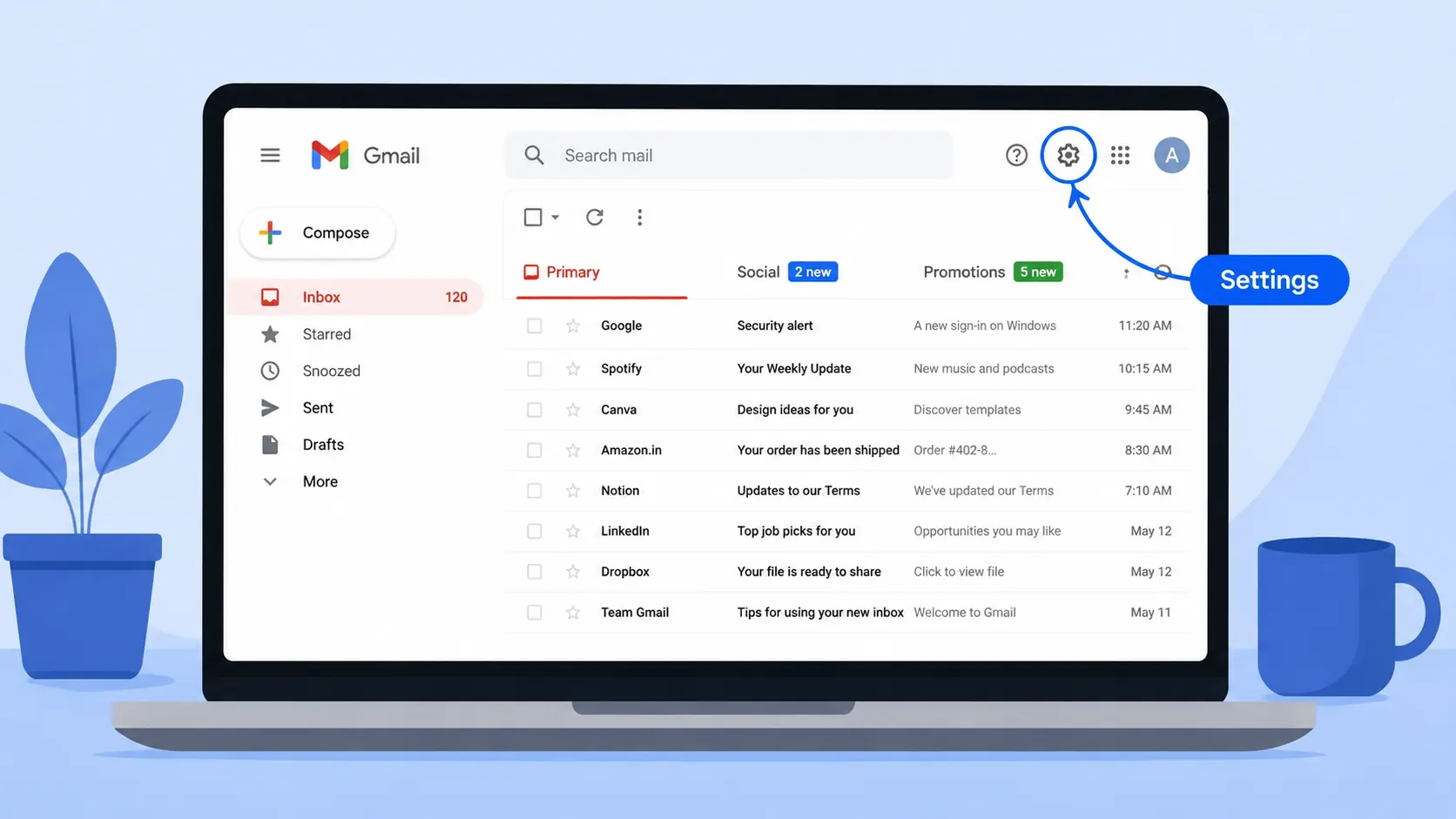
Open Gmail in your browser and sign in to the account you want to change. Click the gear icon in the top right corner, then select “See all settings” to open the full settings page. Stay on the General tab, which loads by default, and scroll down until you reach the section labeled “Smart features and personalization.” Uncheck the box under that heading. Scroll to the very bottom of the page and click “Save Changes.” Gmail will reload, and most in-app AI suggestions should stop appearing within a few seconds.
This single toggle removes the largest cluster of AI activity in Gmail. Once it is off, Smart Compose stops finishing your sentences, Smart Reply stops suggesting one-tap responses, and the automatic summary cards that used to appear above long threads disappear.
Turn Off Google Workspace Smart Features
Unchecking the box above handles Gmail specifically, but a second setting controls how your Gmail data feeds AI features across other Google products, including Docs, Drive, and Calendar. Skipping this step is the most common reason people think they turned off Gmail’s AI and then still see AI activity elsewhere.
On the same General tab, look for “Google Workspace smart features” just below the Smart features section. Click “Manage Workspace smart feature settings” to open a new panel. Inside that panel, turn off “Smart features in Google Workspace” and also turn off “Smart features in other Google products.” Save your changes before closing the panel.
Because this second setting applies across your entire Google account rather than just Gmail, you generally only need to adjust it once, even if you use multiple Workspace apps.
Hide or Remove the Gemini Side Panel
The Gemini side panel, marked by a star icon on the right edge of Gmail, is a separate feature from Smart Compose and Smart Reply. It can summarize a thread, draft a reply, or answer questions about what is in your inbox when you type a prompt into it.

Whether you can remove this panel completely depends on your account type. There is currently no setting that deletes it permanently for every user. If the panel came with a Google One AI Premium subscription, canceling or downgrading that subscription removes it. If you want to keep the subscription but stop seeing the panel, click the small arrow at its edge to collapse it out of view. It will stay collapsed until you manually reopen it, though it can reappear after certain account or app updates, so check back periodically.
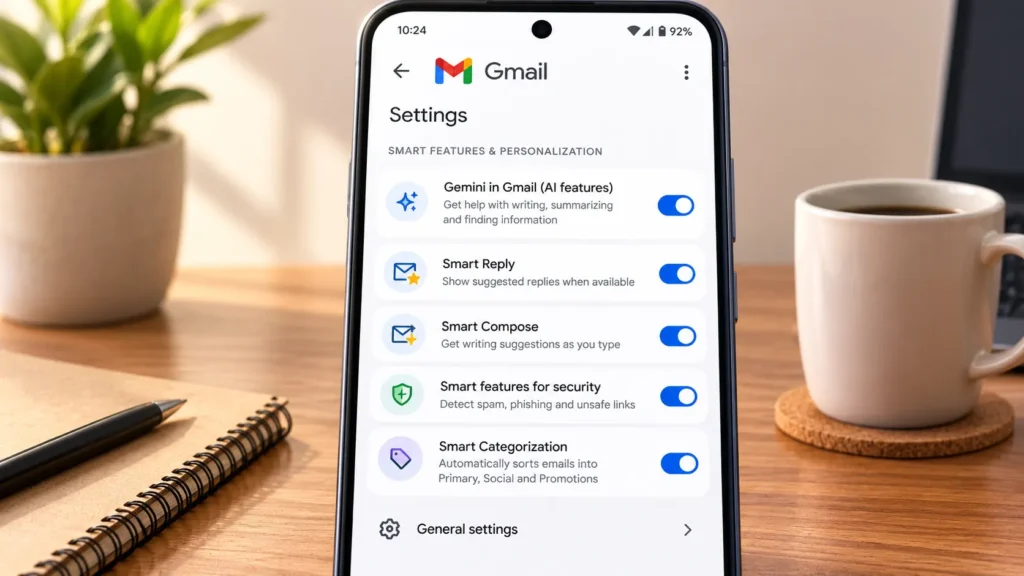
Smartphone showing how to turn off AI in Gmail on the mobile app
The steps on iPhone and Android follow the same logic as desktop, though the menu labels sit in slightly different places.
1. On Android
Open the Gmail app and tap the menu icon in the upper left corner. Scroll down and tap Settings. If you have more than one account added, select the specific account you want to change. Tap “Google Workspace smart features” and uncheck the boxes listed there to turn off the relevant features for that account. Repeat this for every additional Gmail account on your phone, since each one holds its own independent setting.
2. On iPhone
Open the Gmail app and tap your profile photo or the menu icon, then tap Settings. Select the Gmail account you want to adjust. Look for “Smart features and personalization” or “Google Workspace smart features,” depending on your app version, and turn off the toggle. On Android, this setting is account-specific, so switch to each inbox you use and repeat the process.
What Changes After You Turn Off Smart Features
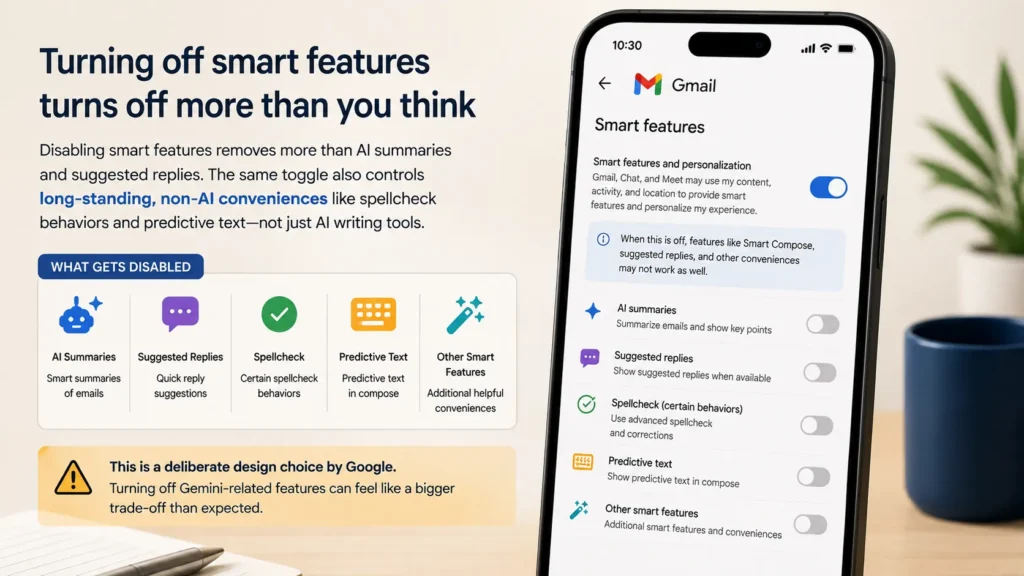
Disabling smart features removes more than AI summaries and suggested replies. The same toggle also controls some long-standing, non-AI conveniences that many people assume are separate, including certain spellcheck behaviors and predictive text outside of full AI writing tools. This is a deliberate design choice on Google’s part, and it means turning off Gemini-related features can feel like a bigger trade-off than expected.
Weigh what you actually use before turning everything off. If Smart Compose genuinely speeds up how you write email, you might choose to keep Smart features on while still collapsing the Gemini side panel. If you would rather Google’s AI have no access to your inbox content at all, turning off both settings covers nearly everything available through Gmail’s own controls.
Managed Workspace Accounts Need an Admin
If your Gmail account is provided by an employer or a school, some Gemini and AI features are controlled at the organization level rather than by your personal settings. In that case, your account settings may not include a working toggle at all, or the toggle may be greyed out.
If you cannot find or change these settings yourself, the fastest path is to ask your Workspace administrator to disable Gemini access for your account, or for the organization as a whole. Admins manage this through the Google Workspace admin console, and it applies uniformly to every user under that policy once changed.
Turning Off the Digital Assistant Separately
Smart features inside Gmail control what happens within the app itself, but they do not affect whether Gemini answers voice commands or acts as your phone’s default assistant. If you also want to stop Gemini from functioning as your digital assistant, that is a separate device setting. On Android, go to Settings, then Apps, then Default apps, and change the Digital assistant app to Google Assistant or None. On iPhone, Gemini typically runs as a standalone app rather than the system assistant, so removing it means deleting the app itself rather than adjusting a Gmail toggle.