

Read AI is a software tool that joins your video calls, records and transcribes what’s said, then turns that transcript into a summary, a list of action items, and a searchable archive you can revisit later. It works with Zoom, Google Meet, Microsoft Teams, and Webex, and it also reaches into email and Slack to pull related work into one place.
For anyone who spends a chunk of the workday in back-to-back calls, the pitch is simple: stop typing notes with one hand while trying to actually listen, and let the software handle the record-keeping.
What Read AI Actually Does
At its core, Read AI is a notetaker. You connect your calendar, and the tool joins scheduled meetings automatically, either as a visible bot participant or through a browser extension, depending on the platform.
Once the meeting starts, it records audio and video, builds a live transcript, and tracks who is talking and for how long. After the call ends, it compiles everything into a report: a short written summary, a full transcript, a list of topics that came up, and action items pulled from what people actually said.
The idea is that nobody has to write a recap by hand or dig through forty minutes of recording to find the one decision that got made. You open the report, skim the summary, and click into the transcript only if you need the exact wording.
How Read AI Joins And Records A Meeting
Read AI connects to your calendar through Google Calendar or Outlook. When a meeting is scheduled on a platform it supports, the assistant either joins as a named bot in the participant list or, on Google Meet, can run through a Chrome extension without a separate bot appearing.
Every participant sees that Read AI is present, and the host or organizer typically controls whether it records that particular call. This matters because meeting recording consent laws vary by state. Some states require every participant to agree before a call is recorded, not just the person who scheduled it.
You can also upload a standalone audio or video file if the conversation happened somewhere Read AI didn’t attend live, such as an in-person meeting recorded on a phone. The tool processes the file the same way it would a live call and returns a full report.
The Meeting Summary, Transcript, And Action Items
The report Read AI generates after a call has a few consistent parts. There’s a summary written in plain sentences, usually a paragraph or two, covering what the meeting was about and what got decided.
Below that sits the full transcript, broken into speaker turns so you can see who said what. The transcript is searchable, and clicking a line jumps you to that exact moment in the video playback, which is useful when you want to confirm the actual tone or wording rather than trust the summary alone.
Read AI also pulls out action items and key questions automatically, flagging moments where someone assigned a task or asked something that didn’t get a clear answer. A short highlight reel stitches together the two-minute version of the meeting, built from the parts the system judged most important based on engagement and topic shifts.
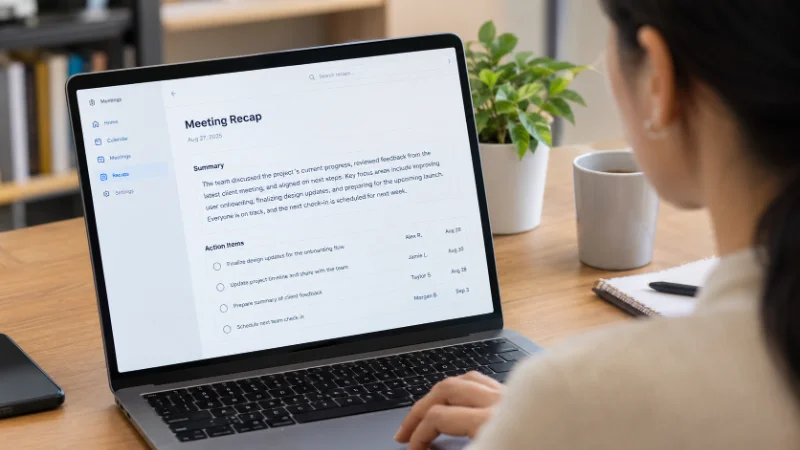
None of this replaces a human read-through for anything high-stakes. Automated transcription still misses words occasionally, especially with strong accents, overlapping speech, or industry jargon, so treat the summary as a starting point rather than a legal record.
Read AI Beyond Meetings: Email, Slack, And Search
Read AI doesn’t stop at video calls. It also connects to Gmail, Outlook, and Slack, pulling messages and threads into the same searchable system as your meeting transcripts.
The idea behind this is that most of what you need to remember from a given week isn’t confined to a single meeting. A decision might get made on a call, referenced in a Slack thread, and finalized over email, and Read AI’s search function lets you look across all three at once instead of hunting through three separate apps.
There’s also a “For You” page that surfaces recurring themes across your recent meetings and messages, and an assistant feature (branded as Ada in some parts of the product) meant to handle smaller tasks like drafting a follow-up email based on what happened in a call.
Speaker Coach And Engagement Scoring
One of the more distinctive parts of Read AI is what it does with meeting behavior, not just meeting content. The tool tracks metrics like words per minute, how often someone interrupts, how many filler words they use, and how balanced the conversation was across participants.
It turns this into a private coaching report for the individual, with practical suggestions like slowing down or leaving more room for others to speak. For meeting hosts, there’s a separate layer showing overall engagement and sentiment during the call, based on facial expression analysis and participation patterns.
This feature draws mixed reactions. Some people find the coaching genuinely useful for improving how they run meetings. Others are uneasy about a tool scoring engagement and reactions in real time, which is part of why Read AI puts weight on making its presence visible to everyone on the call rather than running silently in the background.
Read AI Pricing: Free, Pro, And Enterprise Plans
Read AI runs on a freemium model. The free tier gives you five meeting summaries a month along with basic transcription and unlimited search across your connected content, which is enough for someone who only occasionally needs a recap.
The Pro plan removes the meeting cap entirely, adding unlimited transcripts and priority report processing. It’s typically listed around 19 to 20 dollars per user per month on monthly billing, dropping to roughly 15 dollars per user per month when billed annually.
Above that sits Enterprise, which adds video playback with highlight reels, speaker analytics, engagement scoring, and stronger admin controls, generally priced in the high 20s per user per month on an annual plan. A further Enterprise+ tier exists for larger organizations that need deeper security and compliance features, such as single sign-on and stricter data controls.
Exact pricing shifts fairly often as the company adjusts tiers, so it’s worth checking Read AI’s own pricing page before budgeting for a team rollout rather than relying on a number that might be a few months old.
Where Read AI Works (Platforms And Integrations)
Read AI supports the major video conferencing platforms most workplaces already use: Zoom, Google Meet, Microsoft Teams, and Webex. It has a Chrome extension, desktop apps for Windows and macOS, and mobile apps for iOS and Android, including an in-person recording mode that works without a video call at all.

On the integration side, it connects to Slack, Zapier, and a range of CRM tools, and it can send meeting recaps directly to the platforms a team already uses for tracking work. There’s also API access for companies that want to build Read AI’s output into their own internal tools
Read AI Privacy: Consent And Data Control
Because Read AI records conversations, privacy is a fair question to ask before adopting it. The company states that it doesn’t train its underlying models on customer meeting data, and it holds SOC 2 certification, which covers how customer data is handled and secured.
Participants always see Read AI listed as an attendee or notified through the extension, and hosts can typically choose whether a given meeting is recorded and who has access to the resulting report afterward. Enterprise plans add stricter access controls, useful for regulated industries that need to limit who can view or export a transcript.
The bigger issue isn’t really the software itself; it’s state law. Several US states require all-party consent before a conversation can legally be recorded, so anyone rolling this out for a team should confirm participants are aware and, where required, have agreed before the bot joins.
Read AI Compared To Otter.ai And Fireflies
Read AI sits in a crowded field of meeting assistants, and the most common comparisons are with Otter.ai and Fireflies. Otter.ai has historically had an edge in raw transcription accuracy, particularly with heavy accents or technical vocabulary, while Read AI’s summaries tend to be shorter and more decision-focused.
Where Read AI pulls ahead is search across multiple sources at once and its behavioral coaching features, neither of which Otter or Fireflies offer in the same depth. Fireflies is generally the cheaper option for teams that mainly want transcription and don’t need engagement scoring or speaker coaching.
For someone deciding between them, the honest answer depends on what you actually need. If pristine transcripts matter most, test Otter first. If you want a tool that ties meetings, email, and Slack together in one searchable place and don’t mind paying more for it, Read AI is built for that specific job.
Who Read AI Is Built For
Read AI is aimed at people whose calendars are full of recurring calls: sales teams tracking client conversations, customer success managers who need a reliable record of every check-in, project managers juggling several workstreams, and remote teams spread across time zones who can’t all sit in on every meeting live.
For a salesperson, the value is mostly in the CRM sync and searchable history. Instead of relying on memory or scattered notes to recall what a prospect said three calls ago, they can search across every past transcript for a name, a product, or an objection and get the exact quote back.
For a manager running a distributed team, the recap and action items matter more than the coaching metrics. Someone who missed a meeting because of a time zone gap can read the summary in five minutes and catch up without asking a colleague to repeat everything.

It’s less obviously useful for people who rarely attend calls, work mostly async, or handle conversations that shouldn’t be recorded at all, such as sensitive HR discussions or anything covered by attorney-client privilege. In those cases, the recording itself becomes a liability rather than a convenience, regardless of how good the summary is.
Getting Started With Read AI
Setting it up typically takes a few minutes. You sign up with a work email, connect your Google or Outlook calendar, and choose whether the assistant should join every meeting automatically or only the ones you add it to manually.
From there, most people run it for a week or two on the free tier before deciding whether the meeting volume justifies a Pro subscription. Checking a few transcripts against what actually happened is a fair way to judge accuracy before a wider team rollout.