
The AI Core app is a background system service on Android phones that runs on-device artificial intelligence tasks for other apps to use. It is not something you open directly. Instead, apps like Messages, Gallery, and the phone’s own AI assistant call on it whenever they need to summarize text, edit a photo, or generate a reply.
Most people first notice AI Core when it shows up in a storage report or asks for a multi-gigabyte update overnight. That is normal. The app is doing real work behind the scenes, and this guide breaks down what that work actually is.
What Does the AI Core App Actually Do
AI Core acts as a translator between an app and the phone’s built-in AI models. When Google Messages needs to suggest a reply, or the Gallery app needs to erase an object from a photo, that app sends the request to AI Core, which runs the model and hands back a result.
This setup means individual apps do not need to carry their own copy of a large AI model. They lean on AI Core instead, which keeps the apps themselves smaller and lets Google or Samsung update the underlying model without updating every app that uses it.
1. On-Device AI Processing
A big part of AI Core’s job is running tasks locally, on the phone itself, rather than sending data to a server. Text summarization, message proofreading, tone rewriting, and image description generation can all happen this way.
Local processing has two practical upsides. Tasks tend to run faster because there is no round trip to a data center, and the raw data, such as the exact wording of a text message, does not have to leave the device to get an AI-generated result.
2. Gemini Nano and Local Models
On Pixel phones and many recent Android devices, AI Core is the component that loads and runs Gemini Nano, Google’s smaller AI model built to run directly on a phone rather than in the cloud. Features like Pixel Screenshots, Call Notes summaries in the Phone app, and Magic Compose in Google Messages depend on it.
Without AI Core running, those specific features either stop working or fall back to a cloud-based version, if one exists at all.
3. Which Phones Have the AI Core App
Google’s AICore ships on Pixel phones starting with models that support Gemini Nano, generally Pixel 8 and newer, along with a growing list of other Android phones from brands like Samsung, OnePlus, and Xiaomi that meet the memory and chipset requirements to run the model locally.
Samsung’s version of AI Core arrived with the Galaxy S24 series in January 2024 and has since rolled out across most Galaxy phones running One UI 6.1 and later, including newer foldables and the Galaxy S25 and S26 lines. If your phone supports Galaxy AI features such as Live Translate or Note Assist, it almost certainly has this app installed.
Older or budget phones without the hardware to run local AI models generally do not include AI Core at all, since there is nothing for it to power.
Google AICore vs Samsung AI Core
There are two related but separate things carrying a similar name, and the mix-up is a common source of confusion. Google’s AICore is the Android system service tied to Gemini Nano, found across Pixel phones and other Android devices that meet the hardware requirements.
Samsung has its own app, also listed as AI Core (package name com.samsung.android.aicore), which functions as the engine behind Galaxy AI features such as Circle to Search, Photo Assist, and live translation during calls. Samsung’s version blends on-device processing with cloud-based processing depending on the feature.

If you own a Samsung phone, the AI Core app you see in your app list is almost always this Samsung-built version, not Google’s. The behavior, update size, and settings menu location differ slightly between the two, even though the core idea, an AI engine that other apps borrow from, is the same.
Why Does AI Core Keep Updating
AI Core updates through the Play Store or Galaxy Store like any other app, but its updates can be unusually large, sometimes several gigabytes, because the underlying AI model files are large. A text-prediction model or an image-editing model has to ship with the weights it needs to run, and those files are not small.
Samsung phone owners on newer One UI versions have reported AI Core updates in the multi-gigabyte range tied to expanded language support and new Galaxy AI features. Google’s AICore updates are usually smaller, since Gemini Nano itself updates less frequently than the surrounding feature set.
If an update seems stuck at a specific percentage or restarts from zero, that is typically a Play Store or Galaxy Store download issue rather than a problem with AI Core itself. Restarting the download, clearing the store app’s cache, or switching from Wi-Fi to mobile data (or the reverse) usually clears it.
Is the AI Core App Safe
Yes. AI Core is a legitimate, first-party system app published by Google or Samsung, not third-party software or malware. It ships as part of the operating system or is preinstalled by the phone manufacturer, and it only appears in your app list because it is doing background work other apps depend on.
The permissions AI Core requests, such as access to storage or notifications, line up with what it needs to process the content you ask it to summarize, rewrite, or edit. That said, if you use cloud-based AI features rather than on-device-only ones, some data does leave your phone for processing, which is worth knowing if privacy is a priority for you.
Security researchers and phone communities have not flagged AI Core as spyware or a security risk. Confusion tends to come from the app’s low visibility rather than any actual red flag. It rarely shows a notification, has no icon on the home screen, and only surfaces in Settings, so a sudden update or crash message can look alarming even though the app itself is doing exactly what it is meant to do.
If you want to confirm you have the genuine app rather than a lookalike, check the developer name in the Play Store or Galaxy Store listing. It should read Google LLC for AICore or Samsung Electronics Co., Ltd. for Samsung’s AI Core, never an unfamiliar third-party developer.
Common AI Core Errors and Fixes
Two complaints come up most often in phone communities and support forums: the app crashing with a “keeps stopping” message, and updates that fail partway through.
1. AI Core Keeps Stopping
This error usually points to a corrupted cache or a temporary conflict after a recent update. Restarting the phone resolves it in many cases, since it clears out whatever process got stuck.
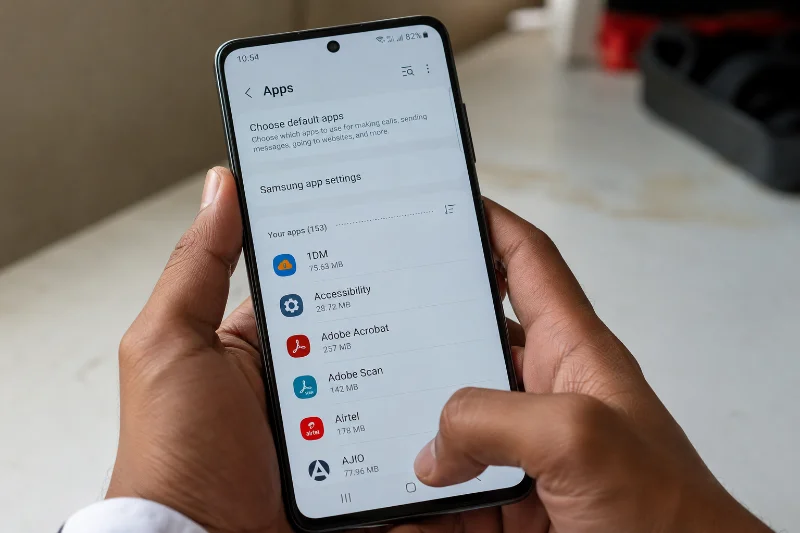
If restarting does not help, go to Settings, then Apps, find AI Core, and clear its cache first. If the crashes continue, clear its data as well, though this may reset any on-device learning the app has built up. Reinstalling or checking for a pending update from the Play Store or Galaxy Store is the next step if the problem persists.
2. AI Core Update Stuck or Failed
Large downloads are the most common trigger. Confirm you have a stable connection and enough free storage, since a failed download often silently fails when storage runs low rather than showing a clear warning.
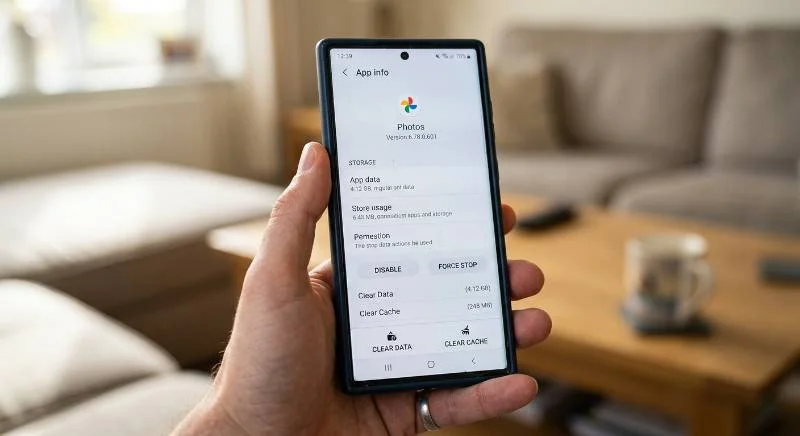
Clearing the Play Store or Galaxy Store app’s cache and retrying the download resolves most stuck updates. A full device restart before retrying also helps more often than it should.
Can You Disable the AI Core App
You can disable AI Core the same way you disable most preinstalled Android apps, though whether you should depends on how much you use the AI features on your phone.
1. How to Disable AI Core
Open Settings, tap Apps, search for AI Core, and open its app info page. From there, tap Force Stop, then tap Disable. On some devices, disabling requires first tapping the three-dot menu and selecting “Disable” from there if the button is not shown directly.
If you want to keep AI Core running but limit what it sends off the device, look for a “Process data only on device” toggle under the phone’s AI or Galaxy AI settings instead of disabling the app outright. This restricts cloud-based processing without turning off local AI features entirely.
2. What You Lose When You Disable It
Disabling AI Core turns off the features that depend on it directly. On Pixel phones, that includes Magic Compose suggestions in Google Messages, the Summarize feature in the Recorder app, Call Notes, and Pixel Studio’s on-device generation.
On Samsung phones, disabling AI Core can affect Galaxy AI features that rely on local processing, though several Galaxy AI tools use cloud-based models instead and may keep working regardless. Text proofreading, tone rewriting, and photo object-erasing tools are the features most likely to stop functioning once AI Core is off.
Does AI Core Drain Battery or Storage
AI Core itself sits idle most of the time and only becomes active when another app sends it a task, so it is not a constant background drain in the way a poorly optimized app might be. The bigger, more noticeable cost is storage, since the AI model files it stores locally can run into several gigabytes on some devices.
If storage is tight, clearing AI Core’s cache (not its data) can free up space without breaking anything, since the cache rebuilds automatically as needed. Disabling the app entirely reclaims more space but removes the on-device AI features tied to it, so it is a trade-off between storage and functionality rather than a pure fix.
Battery impact follows a similar pattern. Running a model locally to summarize a long email or rewrite a text does use processing power for a few seconds, but the task ends quickly, and AI Core goes back to being idle. Phones that show noticeably higher battery drain tied to AI Core are usually running a feature repeatedly in the background, such as continuous live translation during a long call, rather than experiencing a problem with the app itself.
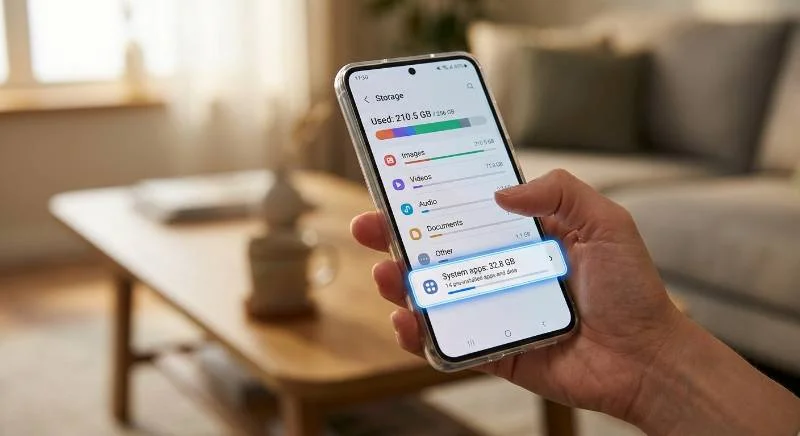
For most people, the practical move is to leave AI Core enabled unless storage is genuinely tight. Clearing its cache periodically through Settings manages storage without giving up functionality.